
Create new item type or manage additional fields
Item type defines which additional fields appear on the item card, in addition to the default ones. The most common item type is Device.
Users who have editor rights for items and admin module can create new item types, or add new fields to existing ones.
Note 💡 Create a new item type only if you have a group of items that require fields that are not included to any existing types.
In this article
How to create new item type
Before creating a new item type, take a look at the existing options to see if any of them could be used. This helps to keep the list easy to read and manage.
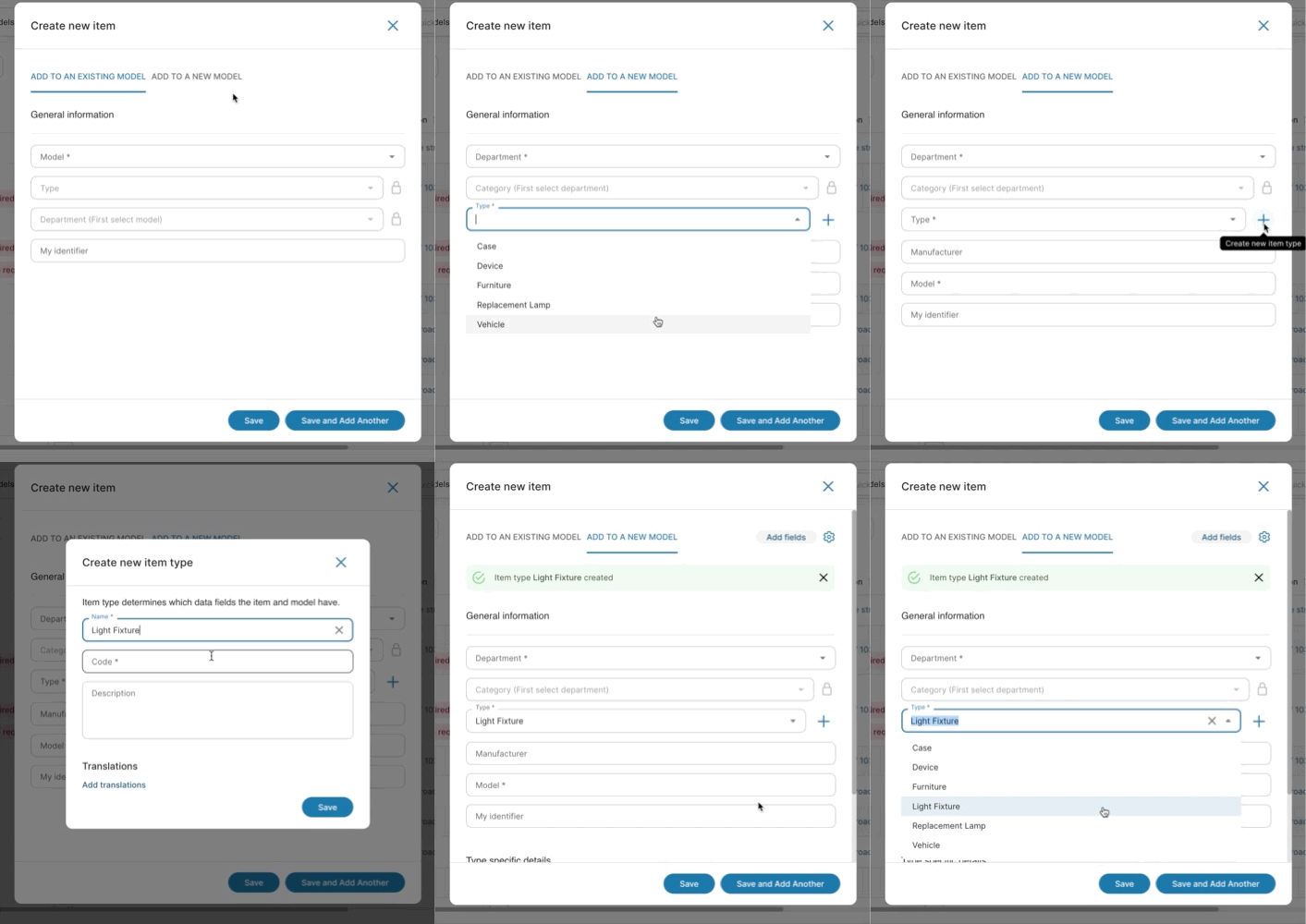
- Open Items - All items
- Click Create new item
- Click Add to a new model
- Check first that the needed item type does not already exist
- Click the plus (+) sign to add a new item type
- Fill in the following information:
- Name: Choose from the dropdown or type a new one
- Code: A single letter shown before the identifier (most commonly I, as an "Item").
- Description: Add a short explanation
- Translations:
- If you selected an existing item type from the dropdown, translations are added automatically.
- If you created a new item type, add the translations manually.
- Click Save
- Your new item type is now ready to use.
How to add new fields to an existing item type
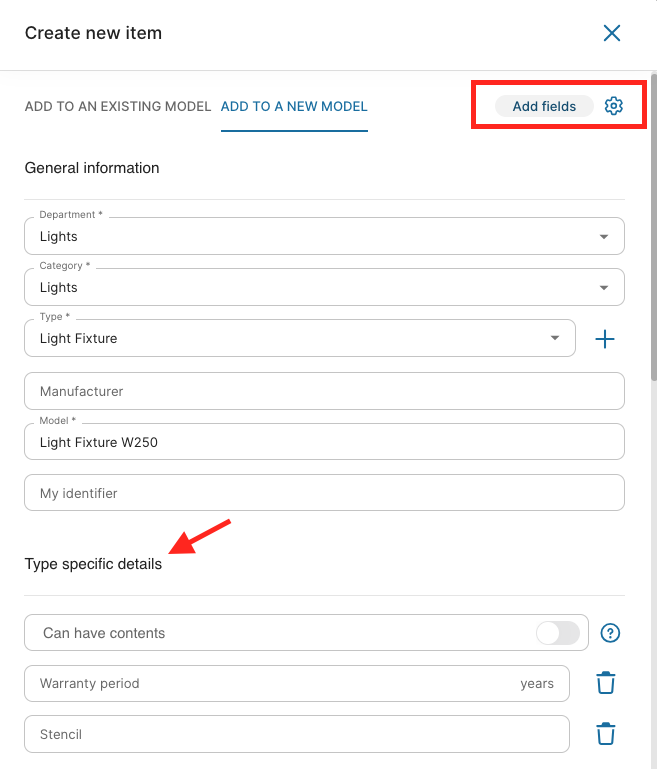
When selecting an item type, the related fields appear under Type-specific details.
If any important field is missing, you can add it manually.
- Select the item type
- Click the settings wheel icon
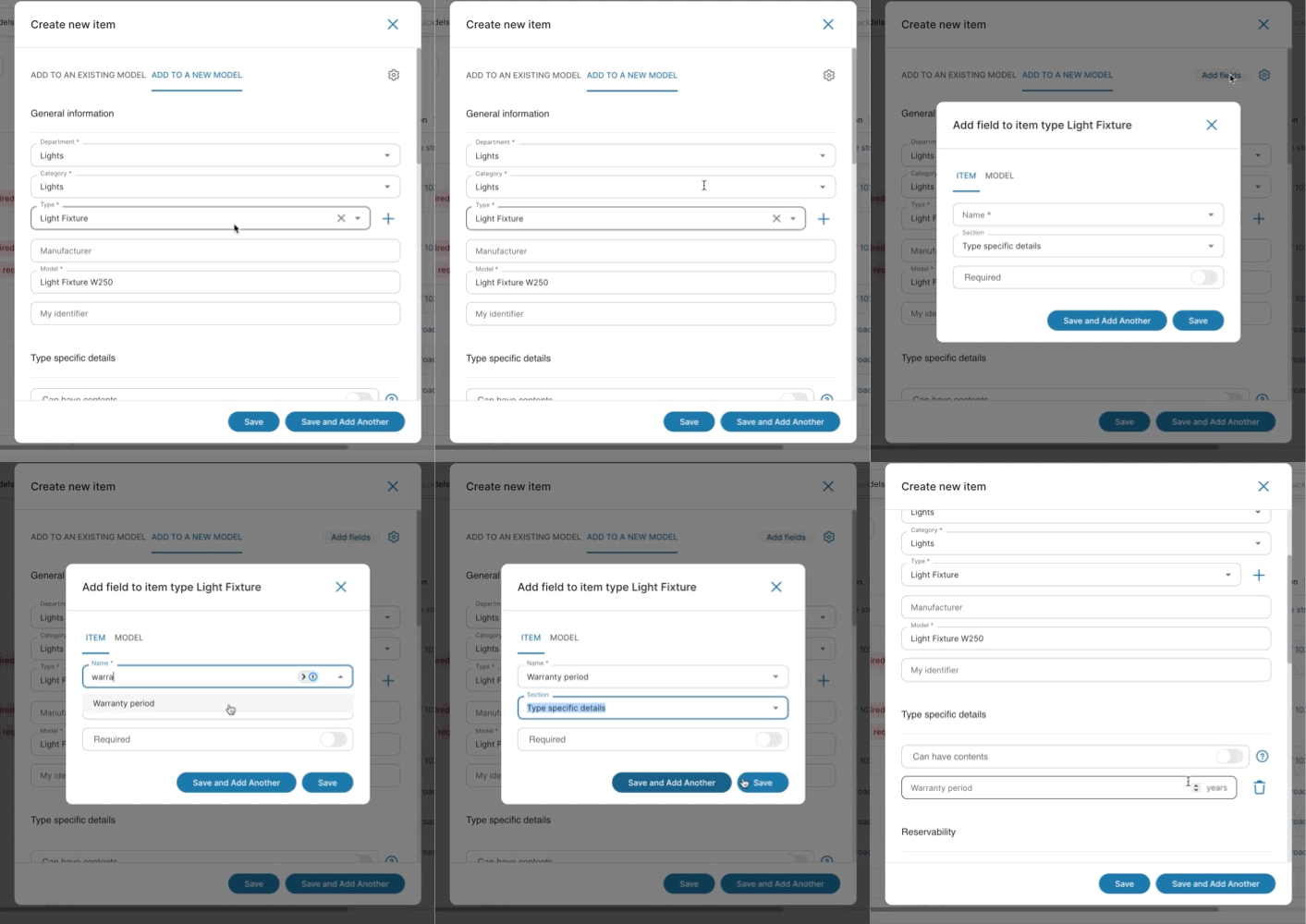
- Click Add fields
- In the form that opens, fill in the following:
- Name
- Section: Choose where the field will appear in item card
- Type specific details (default), General information, Cost details
- Required: Choose whether the field must be filled in for every item
- Click Save, or Save and add another field if needed
- The field in now shown under the selected section
How to manage fields through item list
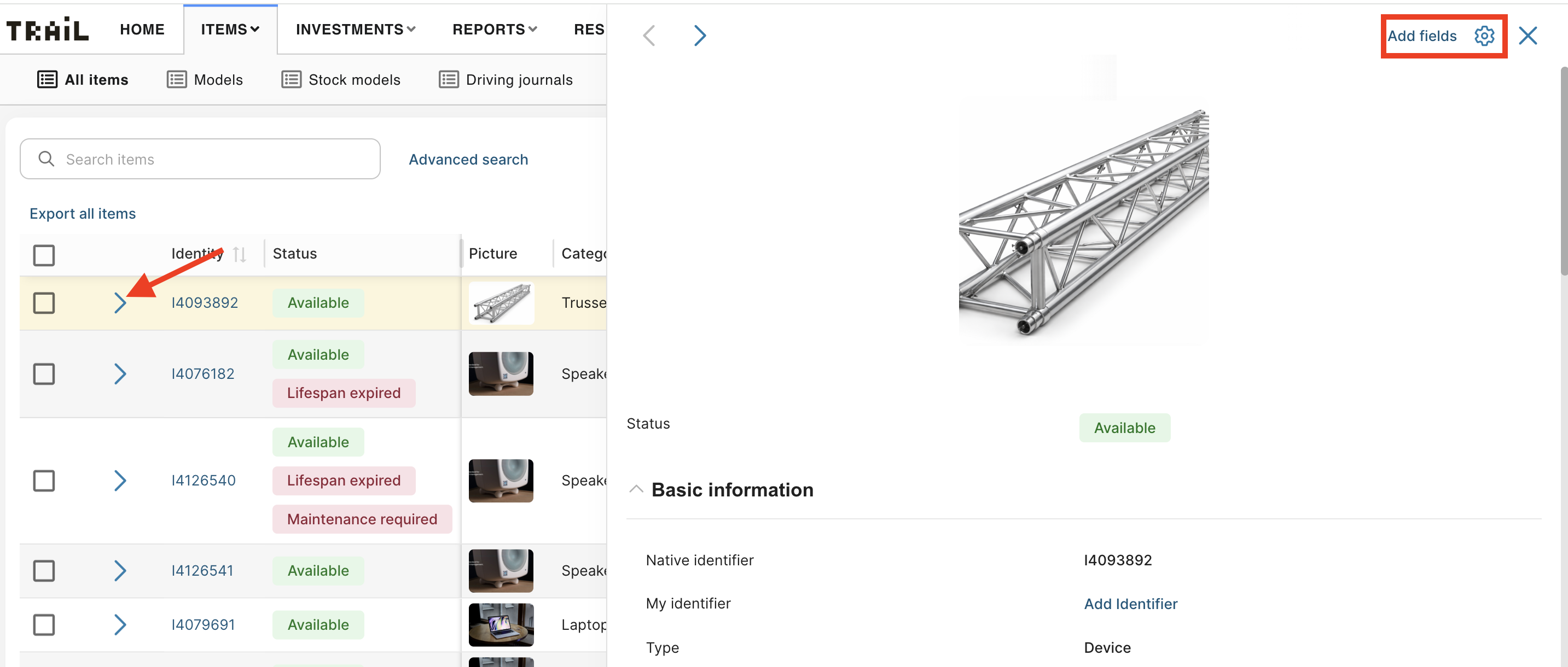
- Open Items - All items
- Click the ">" arrow on the item you want to edit.
- Main details of the item card will open. You can find for example the type and its' addition fields from the view
- From upper right corner, click setting icon (gear)
- From upper right corner, click Add fields
- Choose scope: Item (per-item info) or Model (shared across all items of that model).
- Select name
- You can also select a section and required rule for it
- Click Save
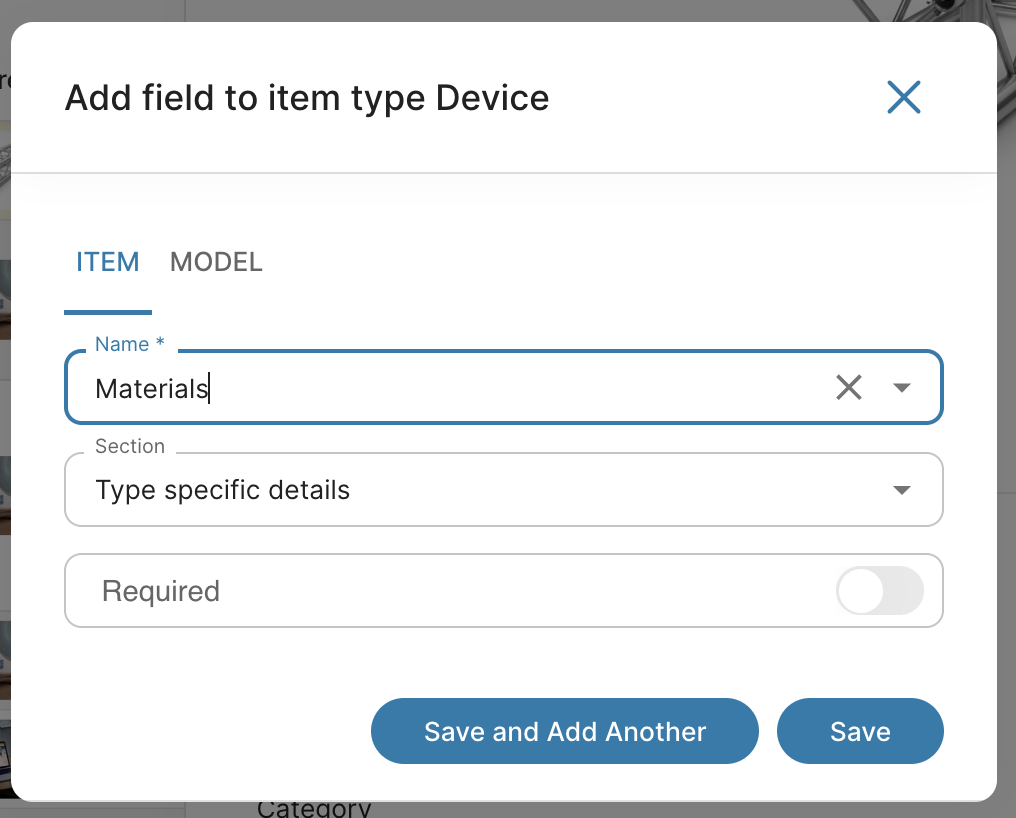
- Field appears under the chosen section.
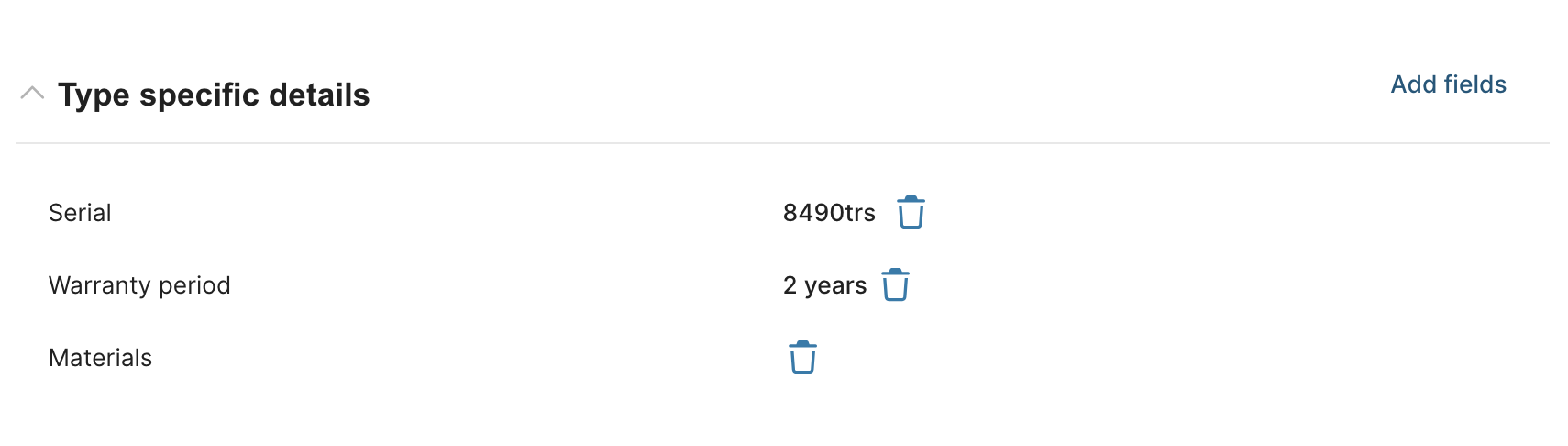
- Note! You can delete an unneeded field by clicking the trash can icon. Do this with caution — it removes the field from all items of that type, not just the one you're viewing.
How to delete an item type or a field
- Delete an item type
- If an item type is no longer needed, please contact Trail Support: support@trail.fi
- Delete a type-specific field
- Confirm that no department or team is currently using the field before deleting it.
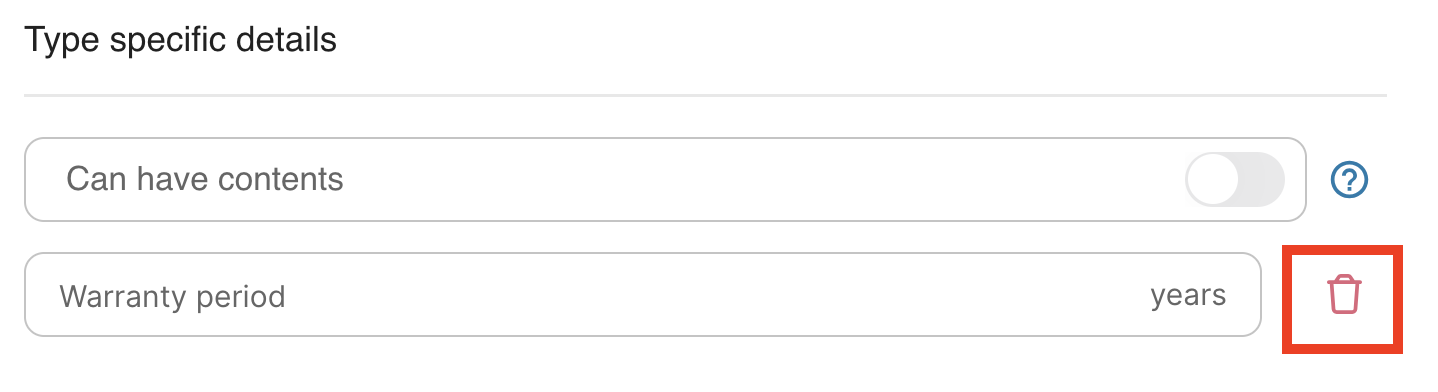
- Click the trash can icon next to the field.
- The field will be removed from the system.
Examples of item types and typically used fields
Item type defines which type-specific fields are available for an item's model.
The most common type is Device. You can create additional item types if you have a group of models that needs information the Device type doesn't provide — for example, registration numbers for vehicles.
The table below is meant to help you understand what kind of item types you might create, and the typical fields for each.
| Type of equipment | Item type | Code | Typical fields | Note |
|---|---|---|---|---|
| General equipment | Device | I | Serial, Warranty | Most general and commonly used item type. |
|
|
Furniture | I | Warranty, Materials, Color, Width, Depth, Height, Diameter |
|
| Transport & storage | Case | C | Summary, Weight, Capacity, Length, Width, Height, Depth | Suitable for cases and racks. Allows automatic content addition. |
|
|
Vehicle | V | Registration plate, Warranty, Number of persons, Weight, Fuel type |
|
| Special equipment | Instrument | I | Insurance value, Production year, Serial, Owner |
|
|
|
Elevating gear | I | Serial, Responsible user, Lifting capacity |
|
|
|
Sling, wire | I | Serial, Warranty WLL, Date of manufacture, Legs, Diameter |
|
|
|
Software License | I | Software version, License key, License type, Number of licenses |
|
| Lighting | Light fixture | I | Serial, Warranty, Stencil |
|
|
|
Replacement lamp | I | Expected Lamp Life (model field) | Typically used for consumable replacement lamps. |
| Costume & props | Wigs | I | Size description, Color, Length, Current user, Role |
|