
Performing maintenance plan for item
Maintenance plans help ensure that an item is working and safe to use.
A maintenance plan should ideally be completed by its due date to ensure the safe use of the item.
This guide covers:
Basic information
- Planned maintenance can be performed by users with editor-level rights for maintenance.
- General settings > Additional option is available, which also allows reader right users to start, perform, and close maintenance plans.
- Maintenance can be handled either in the browser or the mobile app.
- Closed maintenance is recorded in item card's maintenance history, and the maintenance plan’s date counter is reset.
Items requiring maintenance
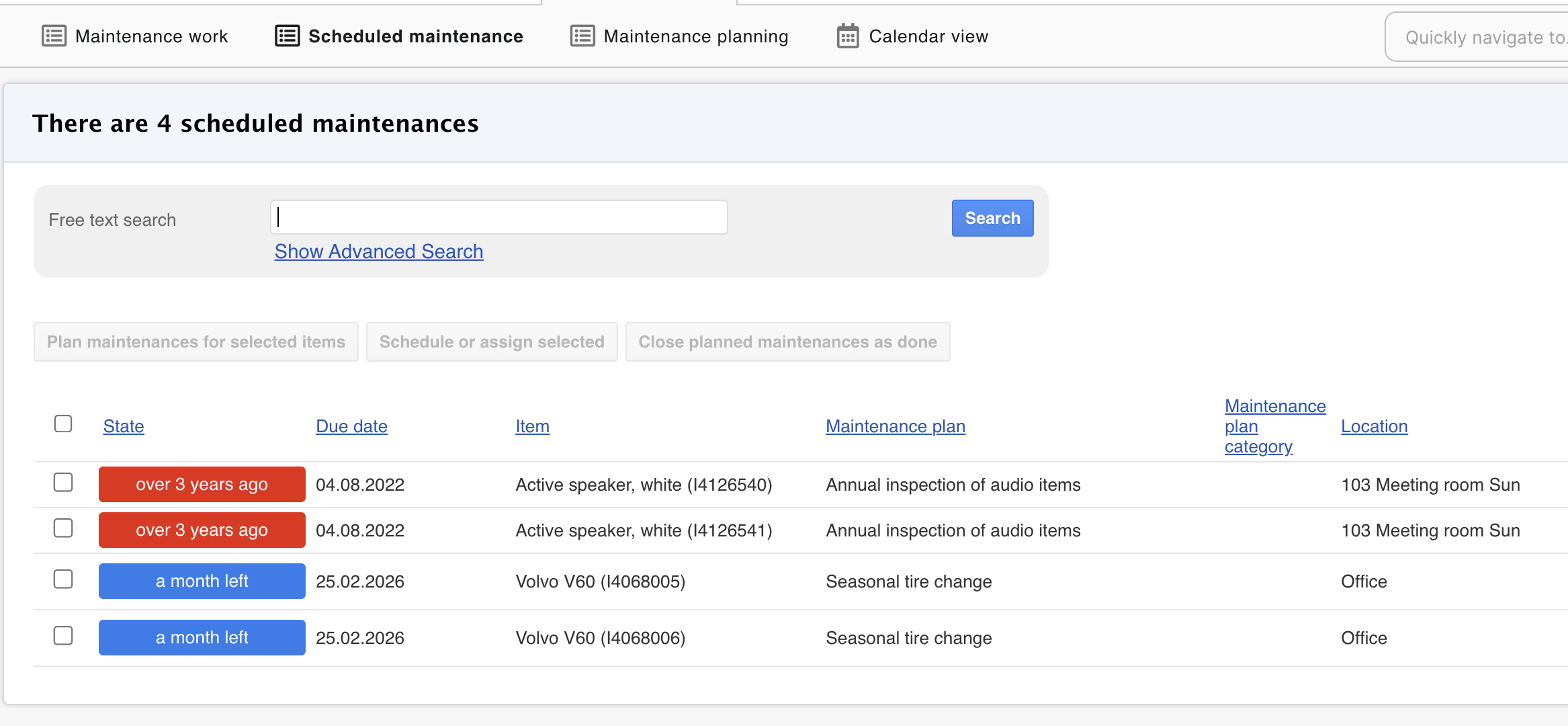
- Open Maintenance > Scheduled Maintenance
- By default, the page shows overdue maintenance and scheduled maintenance for the next three months
- Due date indicates the latest date by which the maintenance should be performed
- Advanced search allows filtering the displayed maintenance tasks, e.g., by location or due date
Starting and closing maintenance in the browser
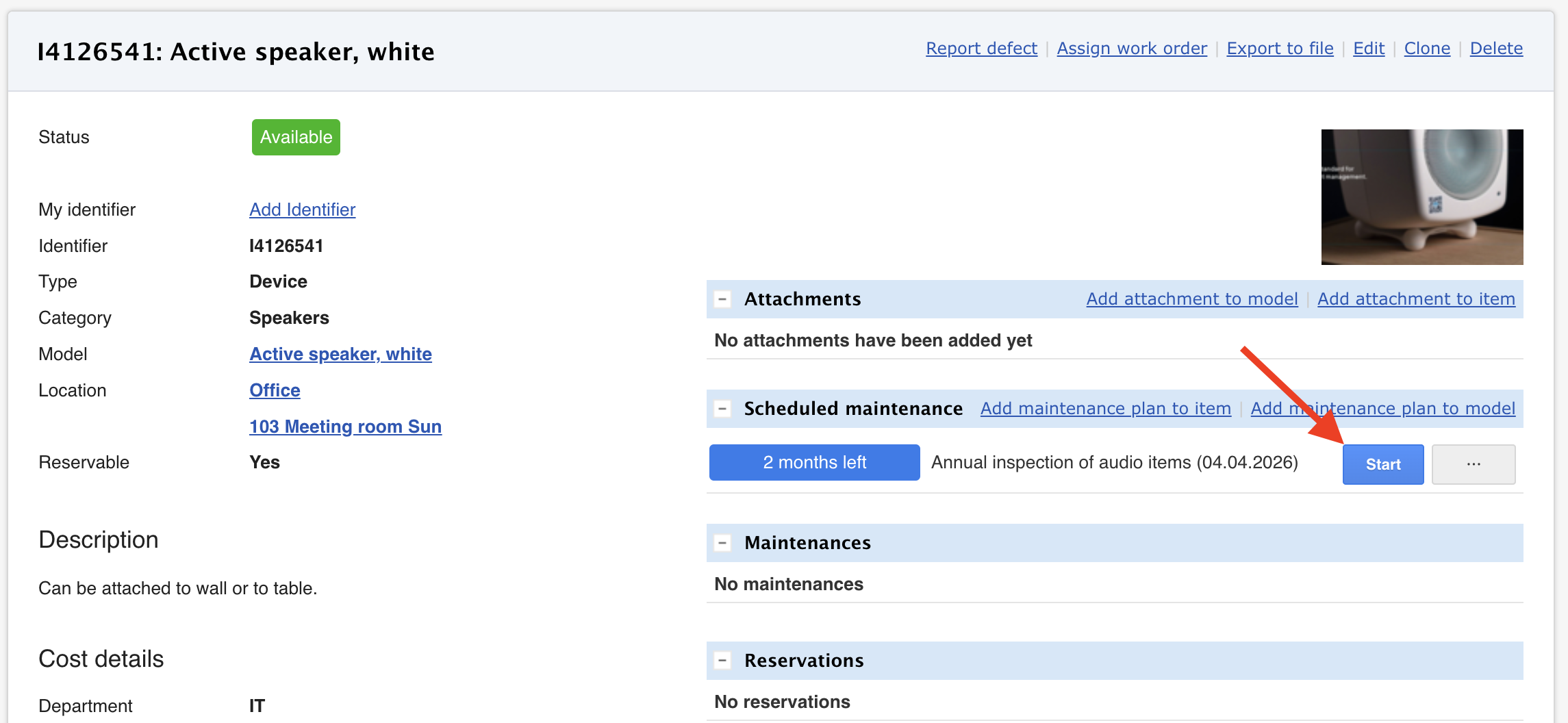
- Open Maintenance > Scheduled Maintenance
- Click the item to open its' item card
- Click Start
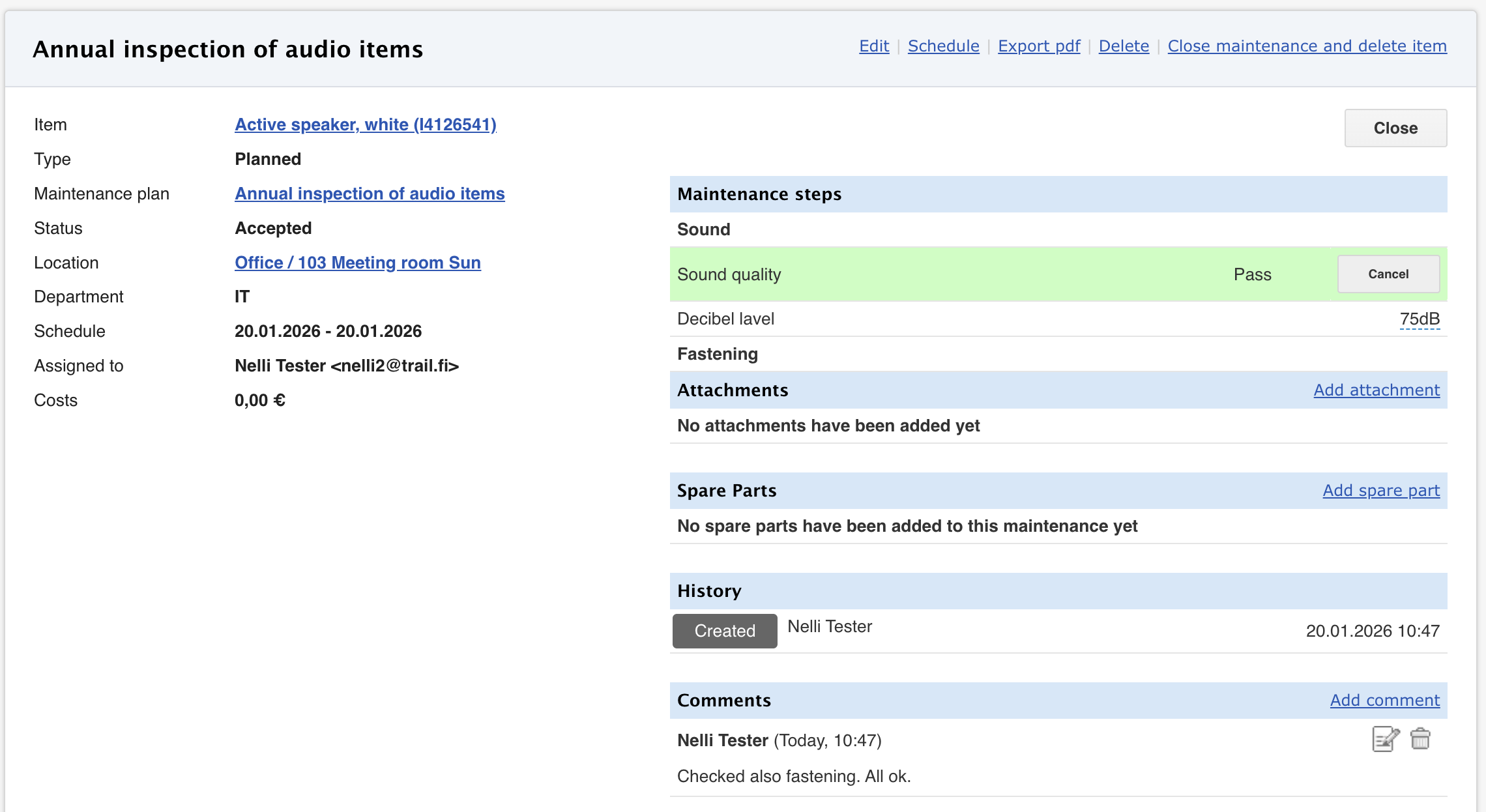
- The maintenance page opens.
- Fill in the details before closing:
- Maintenance Steps (if used)
- Mark each step as Pass or Fail
- Maintenance cannot be closed until all steps are processed
- If a step is rejected, a defect report is created upon closing the maintenance
- Additional Details (if needed)
- Attachments – Add files such as photos or external reports
- Spare parts – Record used spare parts (stock decreases automatically for consumables)
- Tools – Optional. Track usage of devices used as maintenance tools. If recorded, the maintenance appears on the item card under "Maintenance using this device"
- Comments – Record any additional information
- Maintenance Steps (if used)
Top bar buttons
- Delete – Allows deletion of the maintenance if started by mistake. The next maintenance suggestion on the item card returns to the original due date.
- Close maintenance and delete item – Soft-deletes the item. It can later be found via advanced search in the item list.
- Click Close
- Additional info view opens - Add final details if needed.
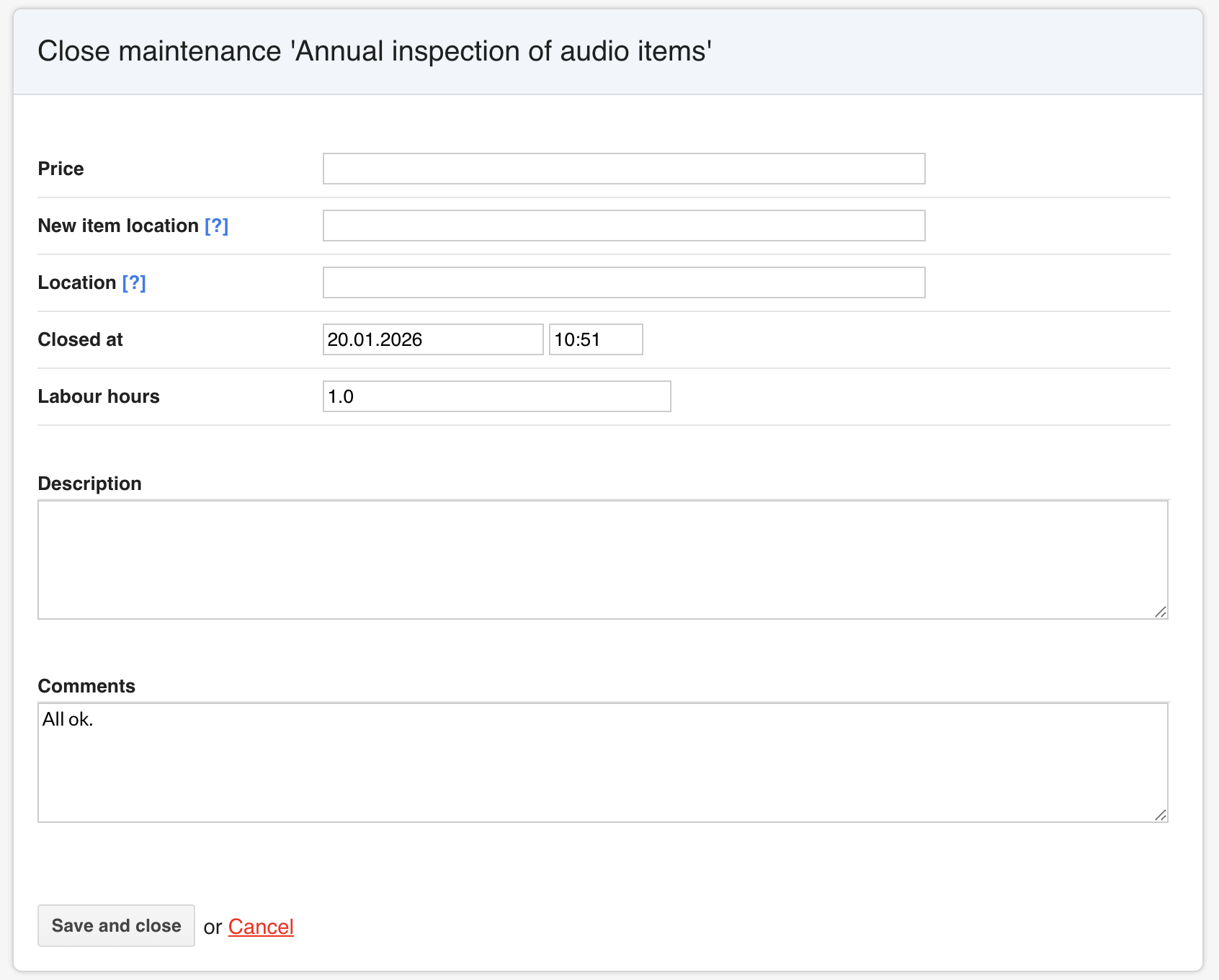
- Click Save and Close
- The maintenance is now completed. The next maintenance due date is calculated from the closing date.
Starting and closing maintenance in the mobile app
- Open the item card
- Scan the item’s tag in the mobile app
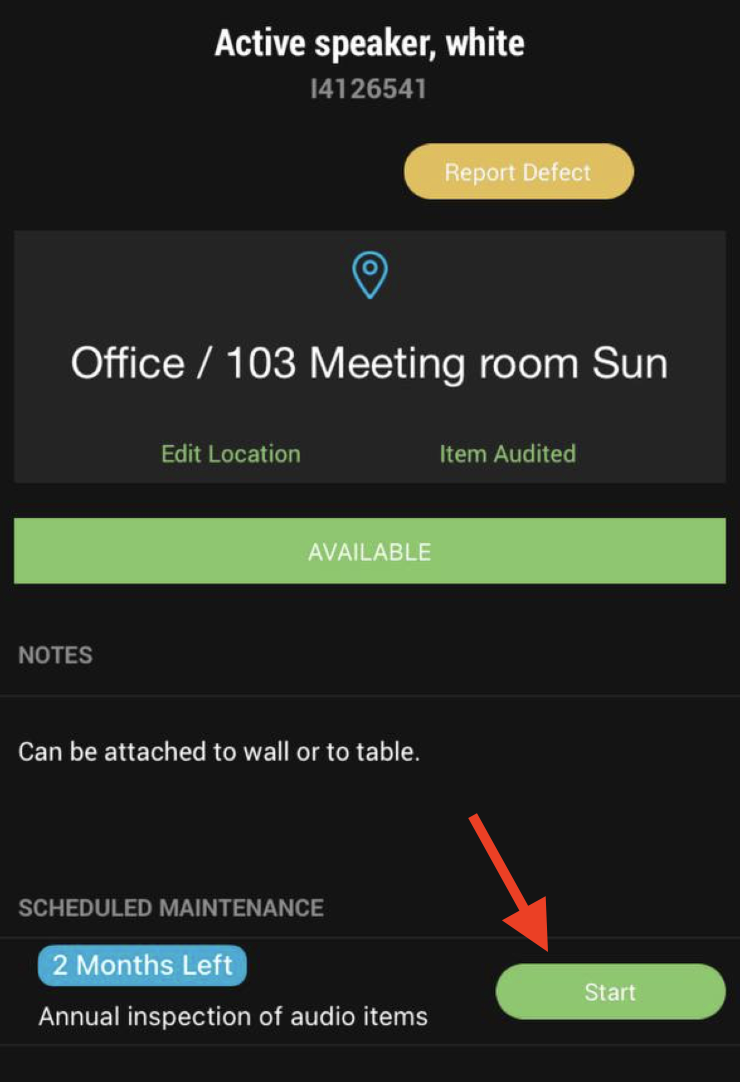
- Scroll down to Scheduled maintenance
- Click Start
- If maintenance steps are used:
- Scroll to the bottom of the page
- Fill in the information
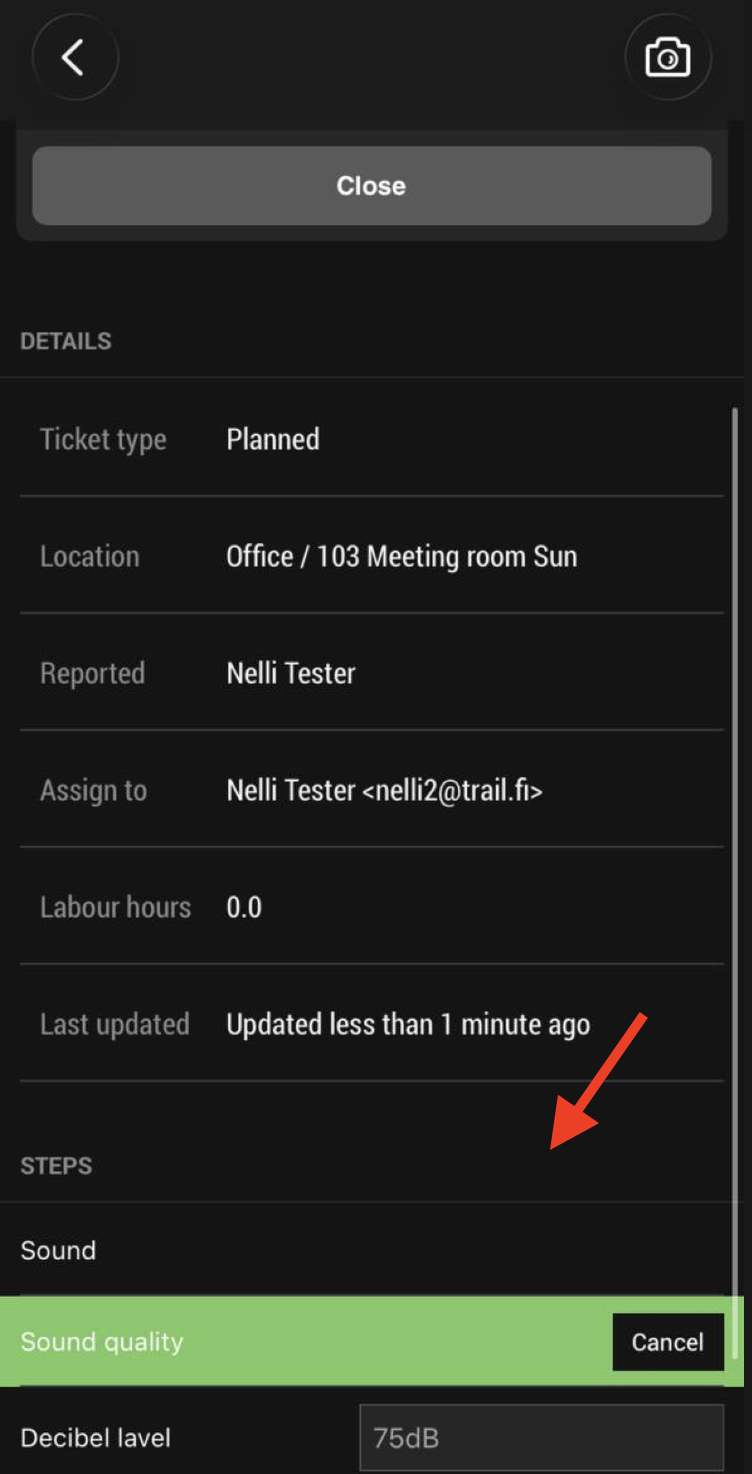
- Click Close
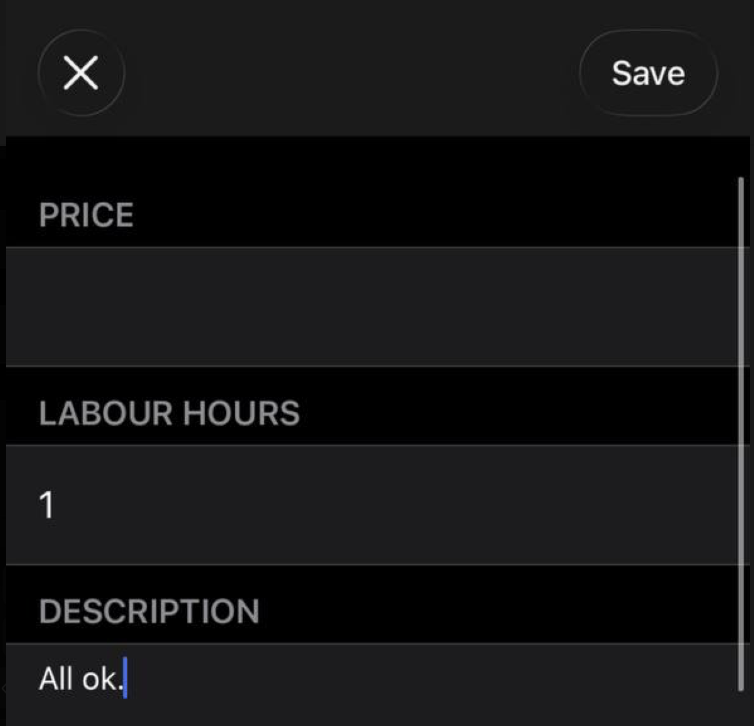
- Optionally add:
- Maintenance cost and time spent
- Description/comments
- Click Save
- The maintenance is now completed. The next due date is calculated from the closing date.
⭐ Tips
- Maintenance cannot be closed if any step is unrecorded
- Recording labour hours helps track the time spent on maintenance
- Attachments (e.g., photos) can help with later review