
How to set up Single-Sign-On (SSO)
Trail’s SSO add-on is designed to streamline access and bolster security for your team. As an optional add-on product, SSO enables your users to log in once and access the Trail Equipment Management service—along with other integrated applications—without juggling multiple passwords.
Activating Microsoft Entra ID Single-sign-on (SSO)
This guide will help you activate and configure your Microsoft Entra ID SSO add-on, ensuring a smooth and secure setup. If you are interested in activating SSO on your Trail environment, please reach out to sales@trail.fi.
Microsoft Entra ID SSO Authentication and user directory synchronisation
❗Please note that this guide includes steps and descriptions for using the admin portal of another software. The guide is based on the user interface and functionality of that software at the time of writing. Since the software is developed by a third party, Trail Systems Oy is not responsible for any changes, updates or rearrangements of the user interface that may affect the accuracy of this guide. If changes occur in the user interface of another software, some of the steps or menu paths described in this guide may no longer correspond to the current situation.
Topics:
1.1. Create an Application (non-gallery) for Trail in Microsoft Entra ID
1.2. Configure how users authenticate (SSO)
1.3. Configure SAML as SSO Method (SAML)
2.1. Create an Application (non-gallery) for Trail in Microsoft Entra ID
2.2. Create a Client Secret (OAuth/OIDC)
3.1. Configure API permissions
4.2. Select relevant groups and extract UUID identifier
4.3. Map Microsoft Entra ID groups to roles in Trail
4.4. Enabling manual user deletion
1. Microsoft Entra ID SSO Authentication for web application
1.1 Create an Application (non-gallery) for Trail in Microsoft Entra ID
Steps:
- Open the Microsoft Entra ID portal
- Go to Applicatios -> App registration
- Select New registration
- Enter:
- Application name: For example, ‘Trail Asset Management’
- Supported account type
- Click Register
Outcome: Microsoft Entra ID creates and Application (client) with (1) Application (Client) ID and (2) Directory (Tenant) ID.
➡️ Please provide Application (Client) ID and Directory (Tenant) ID to support@trail.fi
1.2. Configure how users authenticate (SSO)
Steps:
- In the App registration go to Authentication
- Add your Redirect URI
- Enable:
- ID tokens
- Access tokens (if API calls are needed)
Outcome: When users click “Sign in with Microsoft”, they are redirected to Microsoft Entra ID login.
1.3. Configure SAML as SSO Method (SAML)
Steps:
- Go to Enterprise Applications -> Single sign-on
- Choose the method: SAML
- Configure
- Identifier (Entity ID) – unique ID of the service provider: https://youraddress.trail.fi/saml/metadata
- Reply URL (Assertion Consumer Service URL) – where SAML responses are sent: https://youraddress.trail.fi/saml/acs
- Sign-on URL – optional URL to initiate login
- Save
- Copy the following Entra IdP endpoints (in the Set up <Application Name> section)
- Login URL
- SAML certificate
- Logout URL
➡️ Please provide the Login URL, SAML certificate and Logout URL to support@trail.fi.
How to find SAML Certificate?
Go to the application’s Single sign-on page. Scroll to “SAML Certificates”. Either download the Federation Metadata XML, and send the file to support@trail.fi, or just send the link to App Federation Metadata URL.
2. Microsoft Entra ID SSO Authentication for mobile application
2.1. Create an Application (non-gallery) for Trail in Microsoft Entra ID
Steps:
- Open the Microsoft Entra ID portal
- Go to Applications -> App registrations
- Select New registration (it’s recommended to create a new registration for mobile even if there already exists one for the same service)
- Enter:
- Application name
- Supported account types: Accounts in this organizational directory only (trail.fi only - Single tenant) or Accounts in any organisational directory (Any Microsoft Entra ID directory - Multitenant)
- Click Register
- Manage -> Authentication
IOS:
- Click Add a platform
- Click iOS /macOS
- Enter bundle ID: fi.trail.Trail
- Click Configure
Android:
- Click Add a platform
- Click Android
- Enter Package name: fi.trail.Trail
- Enter Signature hash: pXqTwDZFxc7DtzbQqnmjDGnwdHI=
- Click Configure
Then:
- Manage -> Token configuration
- Click Add optional claim (on top near left column)
- Select ID for Token type and select email in claim column
- Click Add
- Manage -> Overview
- Send the values from the next fields to support@trail.fi
- Application (Client) ID
- Directory (Tenant) ID
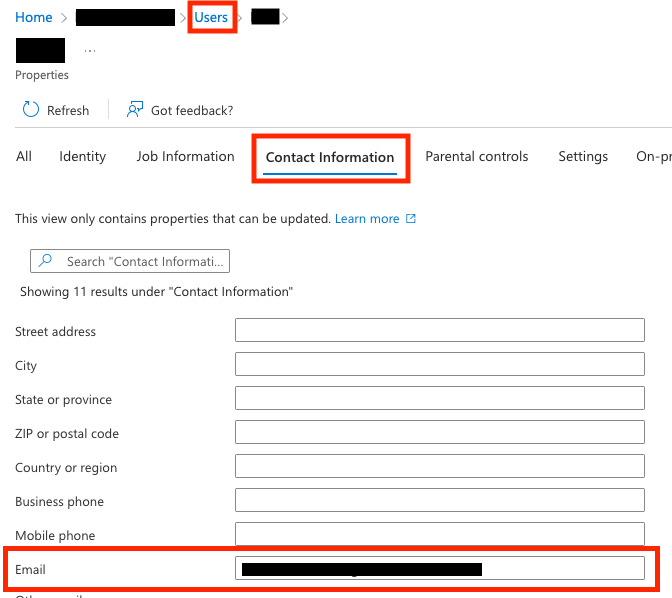
❗ Important: Users must have Email defined in Contact Information for Users in Tenant. This Email is used as an email in Trail. Check image below to set up email for users.
2.2. Create a Client Secret (OAuth/OIDC)
Steps:
- Go to Certificates & Secret
- Click New client secret
- Set
- Description
- Expiration (for example 12 or 24 months)
- Copy the secret value immediately
➡️ Please provide Client secret to support@trail.fi
3. Authenticating Trail to pull user data from Microsoft Entra ID
Entra ID integration offers the possibility for automated user information update for both activated and deactivated users. This enables also user group information to be updated.
- New users: When a new user is created in Microsoft Entra ID, the user is automatically created in Trail after integration run (once per day)
- Disabled users: When a user is disabled or removed in Microsoft Entra ID, they are automatically deactivated/removed in Trail.
In this option, user data is pulled from active directory (active users + user rights). The API requires permissions to access user data. The minimum required user data is: ID, email, given name, surname, account enabled, user groups. However, there might not be the possibility on Microsoft Entra ID to limit the data to the minimum required, and therefore typically the access level to enable the integration is User.Read.All.
3.1. Configure API permissions
Steps for adding API Permissions:
- In the left menu, select API Permission
- Click Add permission
- Select Microsoft Graph
- Choose Application permissions
- Add ‘Group.Read.All’ and ‘User.Read.All’
- Choose Delegated permissions
- Add ’User.Read’
- Click Add permissions
- If required, grant the permissions by clicking ‘Grant admin consent for <...>’
Outcome: API permissions are configured for Trail to pull user data directly from Microsoft Entra ID.
4. Linking Microsoft Entra ID user groups manually with Trail user groups and enabling manual user deactivation
The User Group Synchronisation add-on is designed to simplify user management and ensure your teams always have the right access in Trail Equipment Management. As an optional add-on product, it automatically syncs user groups from your identity provider, reducing manual work and keeping permissions up to date.
Activating user group synchronisation through Microsoft Entra ID
This guide will walk you through activating and configuring your User Group Synchronisation add-on, making setup straightforward and secure. If you’re interested in enabling SSO and user group synchronisation feature for your Trail environment, please contact sales@trail.fi.
This option is used when the user group (and group related access rights) in Trail should be linked to the user group in Microsoft Entra ID, but pulling data directly from Microsoft Entra ID is not an option.
In this option, user groups are activated on login. This option won’t allow deletion or deactivation of users by default. The only way to add user deactivation in this option is to provide the list of active users (xls, csv) to Trail regularly for the deactivation update. Also, as the user rights are updated on login, there is a possibility that user doesn’t login and therefore user rights won’t be updated accordingly.
4.1. Configure Group Claims for authorisation for Microsoft Entra ID
Steps:
- Go to App registration -> Token configuration
- Click Add group claim
- Select the groups that will be sent to Trail during login (for example “All groups” or “Groups assigned to the application”)
- Save
4.2. Select relevant groups and extract UUID identifier
Steps:
- Go to Groups
- Select the groups that are relevant for Trail users
- From each group, extract the (36-character) UUID identifier (Object ID)
4.3. Map Microsoft Entra ID groups to user groups in Trail
Steps:
- In Trail, open Admin -> User groups
- Open the desired user group for editing
- Add the UUID identifier to the ‘Identifiers’ field
- Save
Outcome: User groups in Microsoft Entra ID are mapped with user groups in Trail determining the correct user rights.
4.4. Enabling manual user deletion
Provide the list of active users (xls, csv) to support@trail.fi regularly for the deactivation update. Agree with support@trail.fi how to receive the list and how often it is updated. The list is used to deactivate all non-active users.