
Settings (mobile)
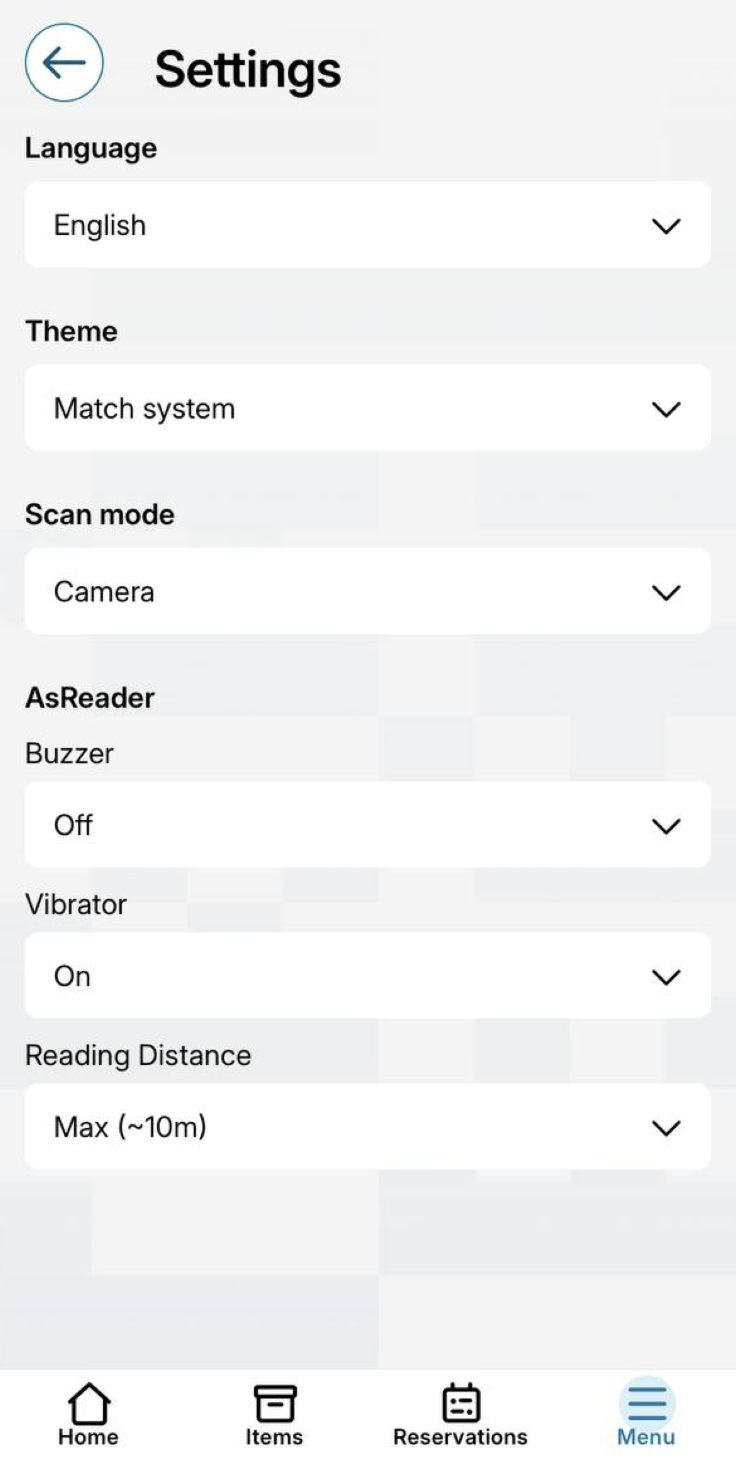
The Settings view lets you adjust the app's basic settings, such as language, appearance theme, and scan mode.
If an AsReader RFID reader is connected to your phone and the scanner is on, you will also see reader-specific settings in the same view.
This guide covers every option in the Settings view and explains what each one does.
1. Basic settings
- Open Menu - Settings.
- Language - choose the app's language from the dropdown menu.
- Theme - choose the appearance: light, dark, or Match system, which makes the app follow your phone's own theme setting.
- Scan mode - choose how items are scanned:
- Camera – items are read using the phone's camera (e.g. QR or barcode)
- NFC - Allows to scan NFC tags
2. AsReader settings
This section only appears if an AsReader RFID reader is connected to your phone, and the scanner is on. If no reader is connected, this section won't show up in Settings at all.
- Buzzer - choose whether the reader makes a sound while scanning (High / Low / Off).
- Vibrator - choose whether the reader vibrates while scanning (On / Off).
- Reading Distance - choose the reading range. The greater the distance, the farther away the reader can detect RFID tags — for example, Max (~10m) reads tags from up to about 10 meters away.
⭐ Tip: If you're doing inventory in a tight space or with items placed close together, choose a shorter Reading Distance so the reader doesn't accidentally pick up tags from a neighboring room or area.