
FAQ for Lendings
The Trail Lendings App is used to hand out equipment to users and record returns.
This article answers common questions and provides guidance on the most common issues.
1. Why doesn’t the equipment appear on the user’s card when I scan the barcode?
Trail: The most common reason is that the barcode field is not active. Click the barcode field and scan the equipment’s barcode again. If needed, press Enter on your keyboard.
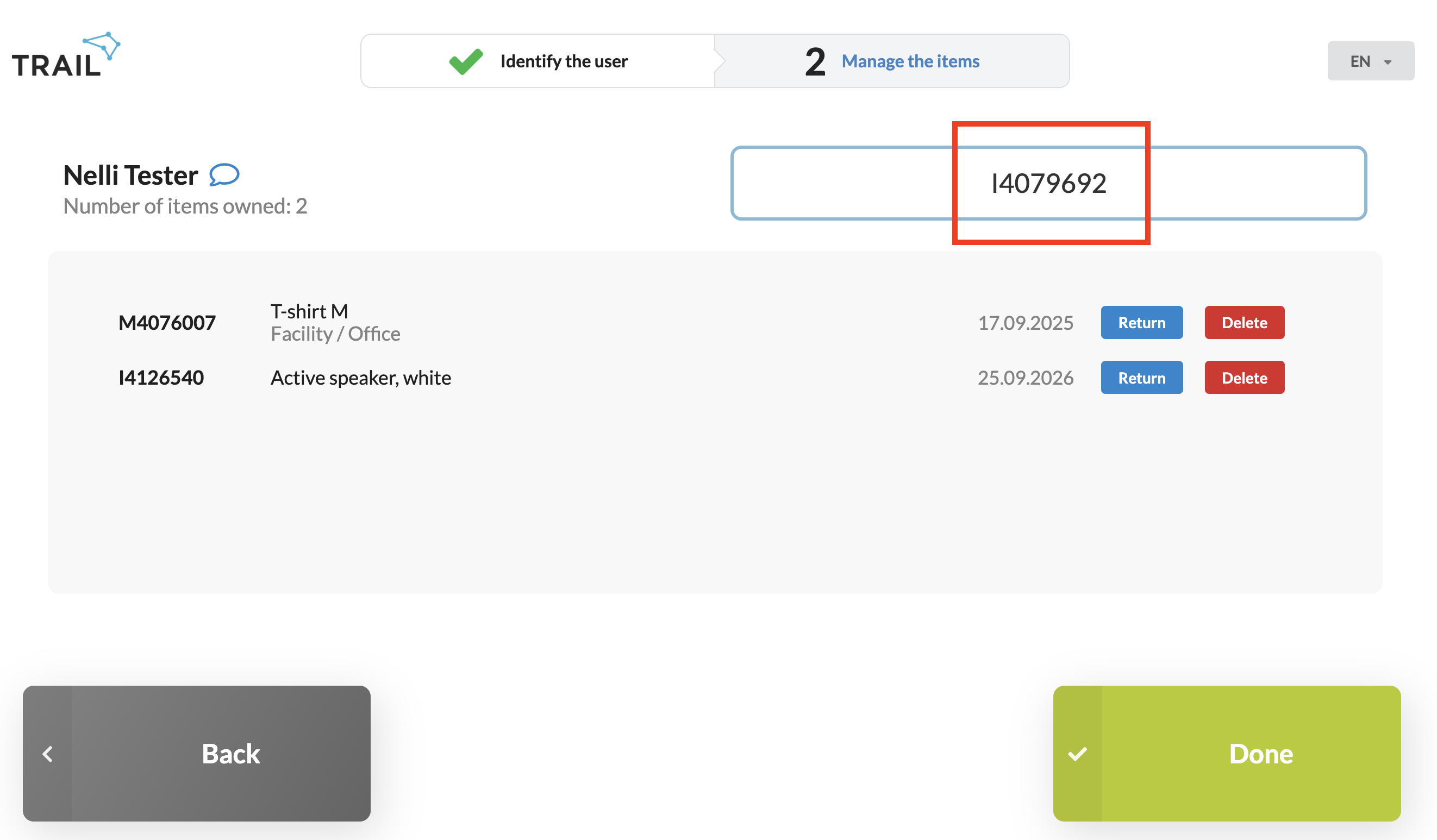
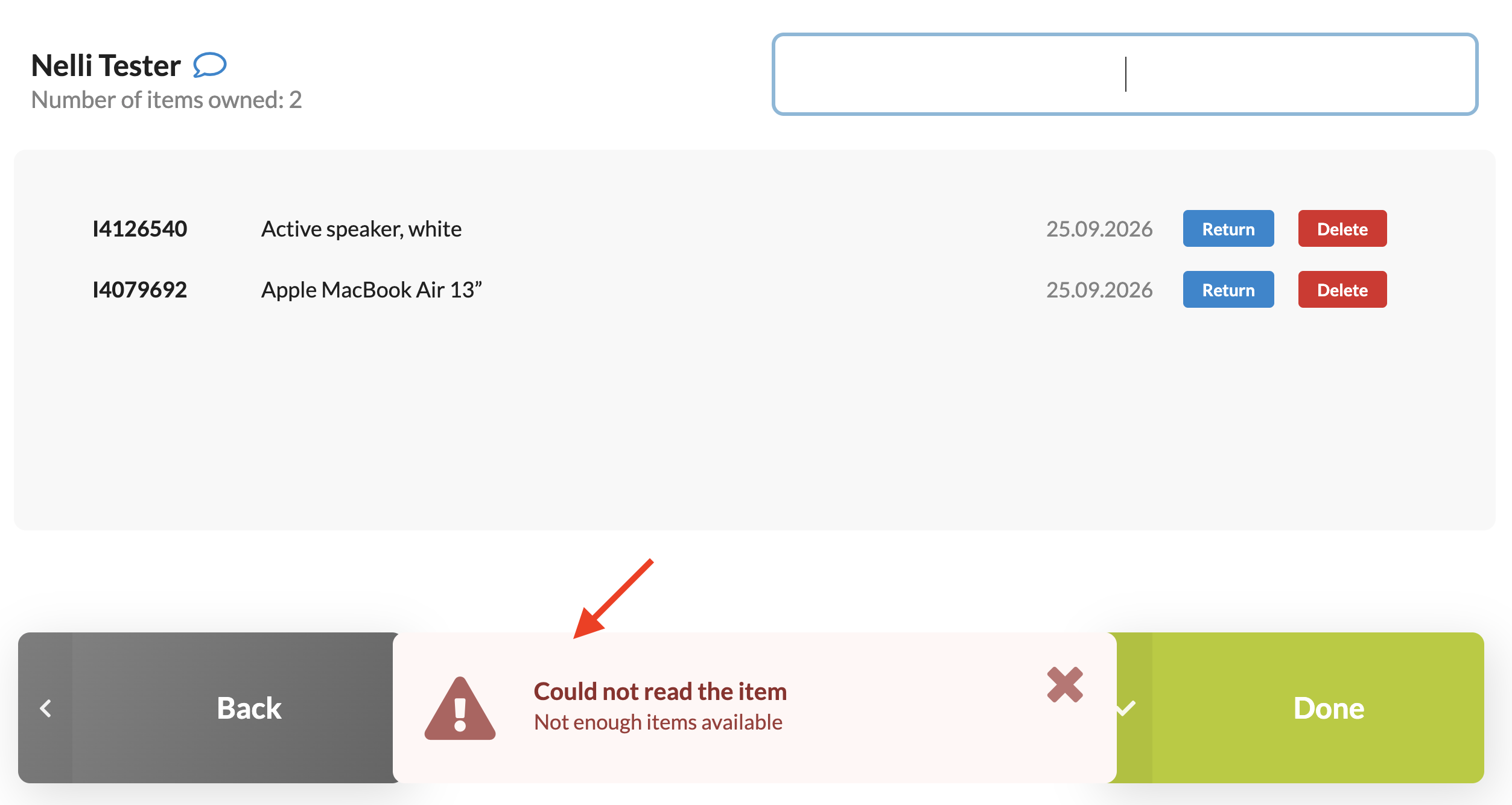
If you see the error “Could not read the item” after scanning, check these common causes:
- The item belongs to a different location or department - The item’s location and department must match those assigned to the terminal.
- On stock models - If you scanned a stock model, check that enough items are available at the terminal’s location and department.
- The user does not have the required user rights - The user receiving the equipment needs at least reader rights to Lendings and Items, and access to the terminal’s department.
2. Why can’t I hand out equipment to a user?
Trail: Check the user’s permissions, whether the item is reservable, and the terminal settings.
The user receiving the equipment must have at least:
- Lendings: Reader rights.
- Items: Reader rights.
- Access to item's department.
The item must also be reservable.
Check that equipment is available at the terminal’s location and department. You may not be able to hand out an item if it belongs to a different location or department than the terminal.
If needed, ask your organization’s Trail Admin User to check the permissions and settings.
3. Can I set a return date for a lending in advance?
Trail: The Lendings feature is intended for situations where the return date is not set in advance.
If you need to specify a start and end time for the equipment, use Trail’s Reservations feature.
4. Can I search for a user without an ID card?
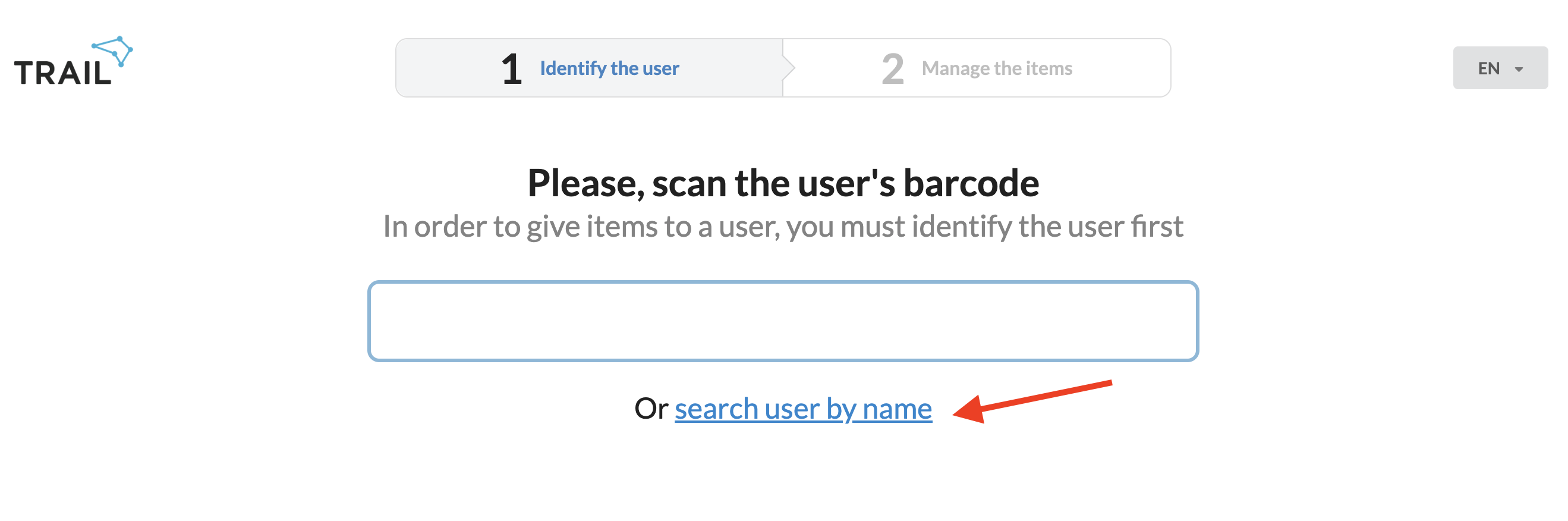
Trail: Yes. Click Search user by name below the ID field and enter at least three characters of the user’s name.
Select the correct user from the search results and press Enter.
The user must have a profile in Trail before equipment can be handed out to them.
5. Where can I get the terminal login credentials?
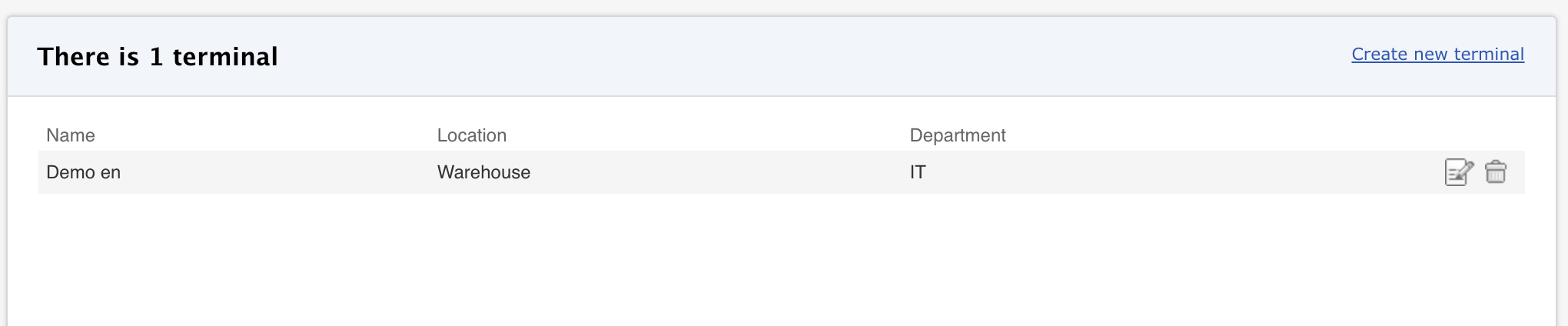
Trail: You can get the terminal name and password from your organization’s Trail Admin User. Admin Users can view and manage terminal details in Trail’s Admin menu.
Terminals are location-specific, so make sure you sign in to the terminal for the location where the equipment is being handed out.
6. How can I easily exchange an item for a new one?
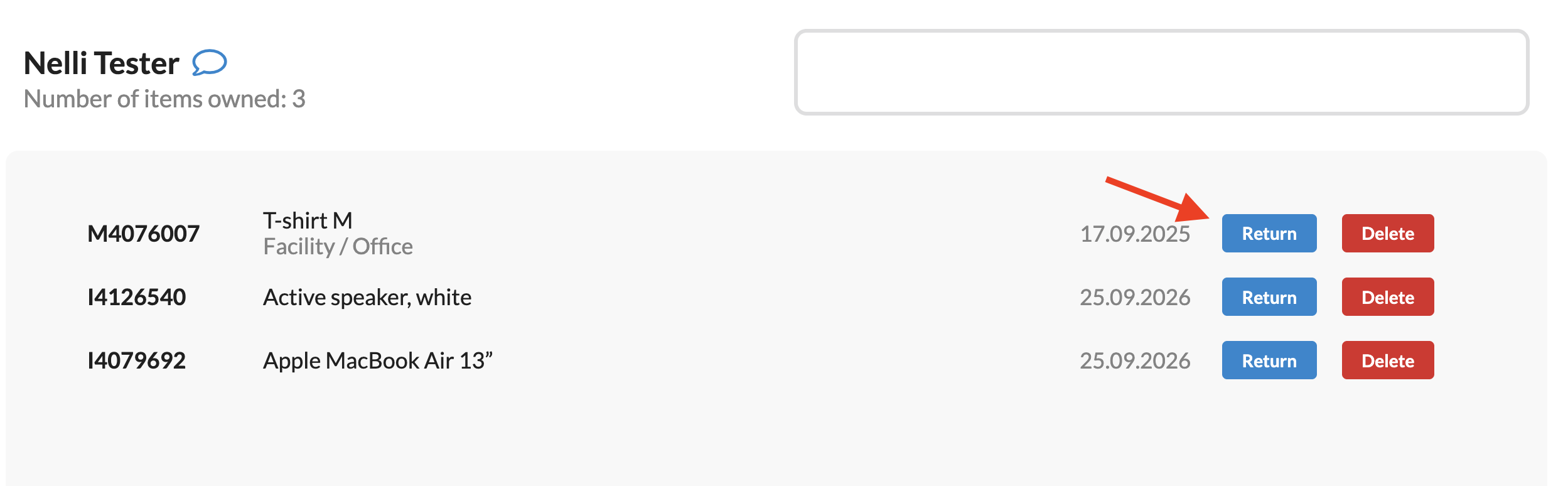
Trail: You can return the old item and hand out a new one at the same time on the user’s equipment card.
- Identify the user.
- Click Return next to the old item.
- Scan the new item’s code into the barcode field and press Enter.
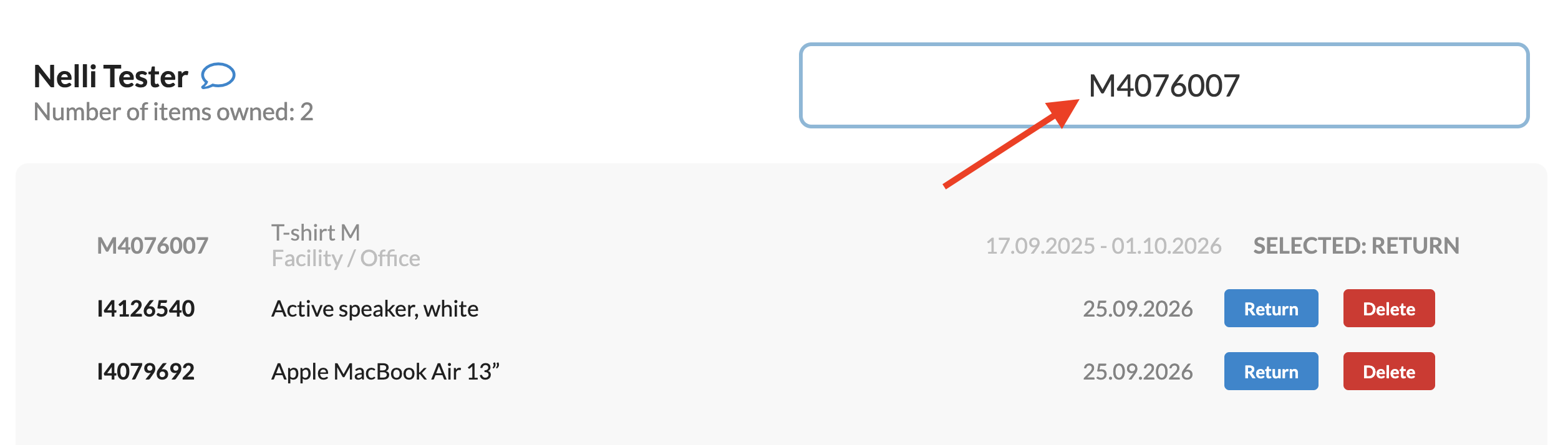
- Check that the new item appears in the user’s equipment list.
- Click Done when you are finished.
If the old item is lost or no longer usable, use Delete instead of returning it normally.
7. Can I mark clothing for washing?
Trail: Yes. The washing feature is not enabled by default.
Contact support@trail.fi, and we can enable an additional Wash button for marking items for washing.
Once the feature is enabled, identify the user and click Wash next to the clothing item that needs washing. You can hand out a replacement at the same time by scanning its barcode.
An item marked for washing is moved to the Wash location. It cannot be handed out again until it has been returned to the available stock.
8. Where can I see the equipment handed out to a user?
Trail: Identify the user in the Lendings App. Their equipment card shows the equipment currently in their possession.
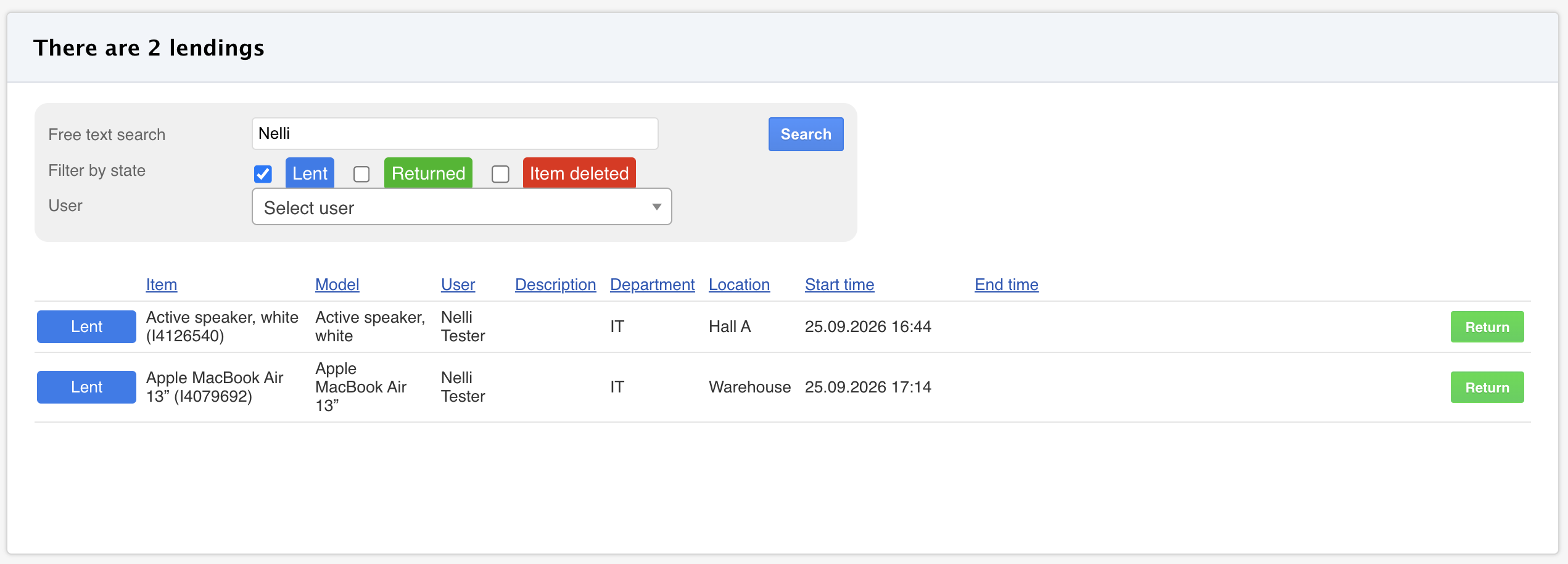
You can also view lendings in Trail’s Lendings module, depending on your permissions. With editor rights, you can view other users’ lendings and return items on their behalf.
9. Can I add a note about a user for other staff handing out equipment?
Trail: Yes. Click the speech bubble icon next to the user’s name on their equipment card. Select New Comment, write your message, and click Add.
The latest comment appears below the user’s name on their equipment card. You can view all comments by clicking the speech bubble icon. Comments can be used, for example, to share special instructions for handing out equipment.
Read more: Adding comments to users.