
Adding a reservation to a production
The Reservations feature lets you reserve items for a specific period of time, for example the standard parts needed for productions.
When you link a reservation to a production, it appears in the production view, so you can see in one place what item has been reserved for the production.
This guide covers:
New reservation for a production
- Open Reservations – All reservations
- Click Create new reservation
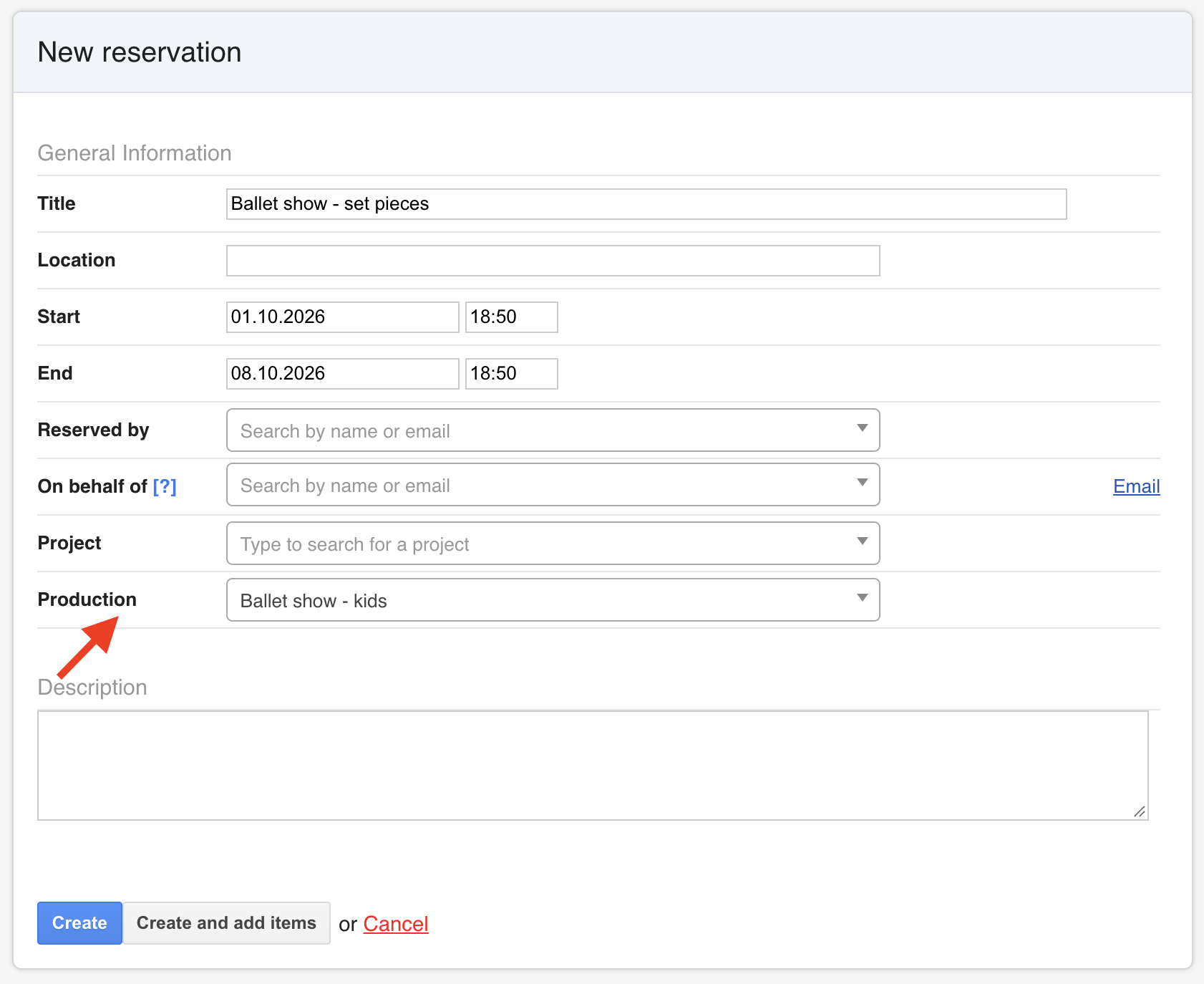
- Fill in at least the following fields:
- Title
- Date and time
- Production – links the reservation to the production's own view
- Click Create or Create and add items
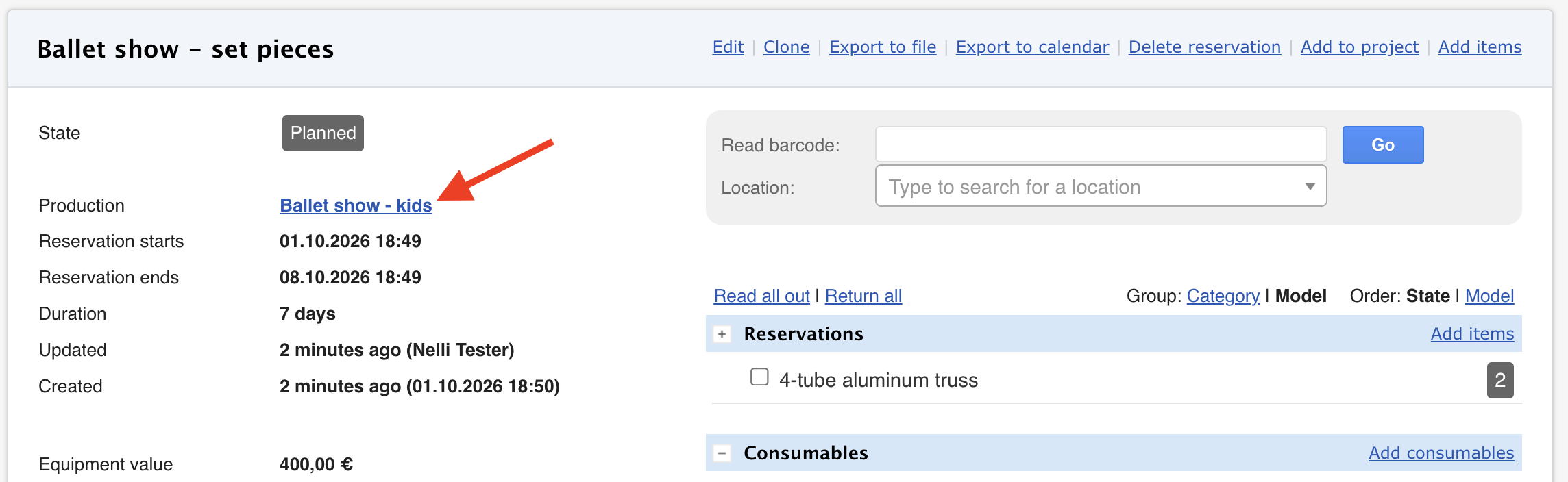
- The reservation's own page shows which production the reservation is linked to.
- When the item is needed for the production, remember to read it out.
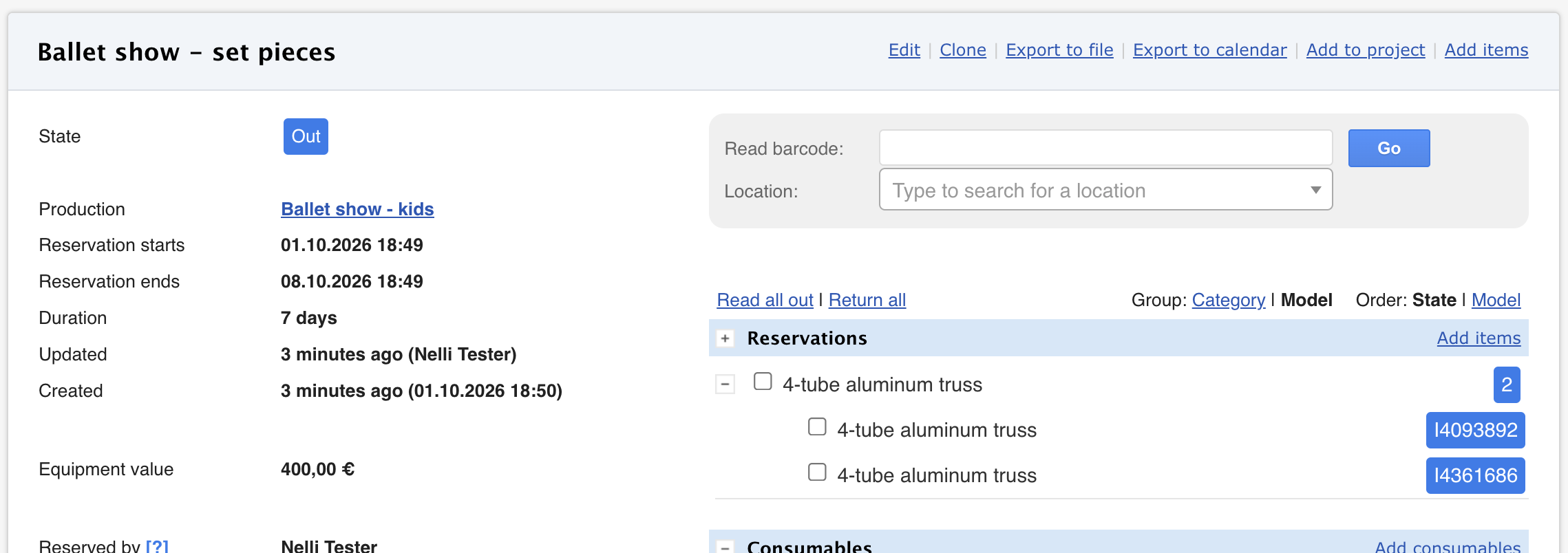
- After the production, remember to return the items.
- For detailed instructions on creating a reservation and adding items, see: Creating a reservation
Production view
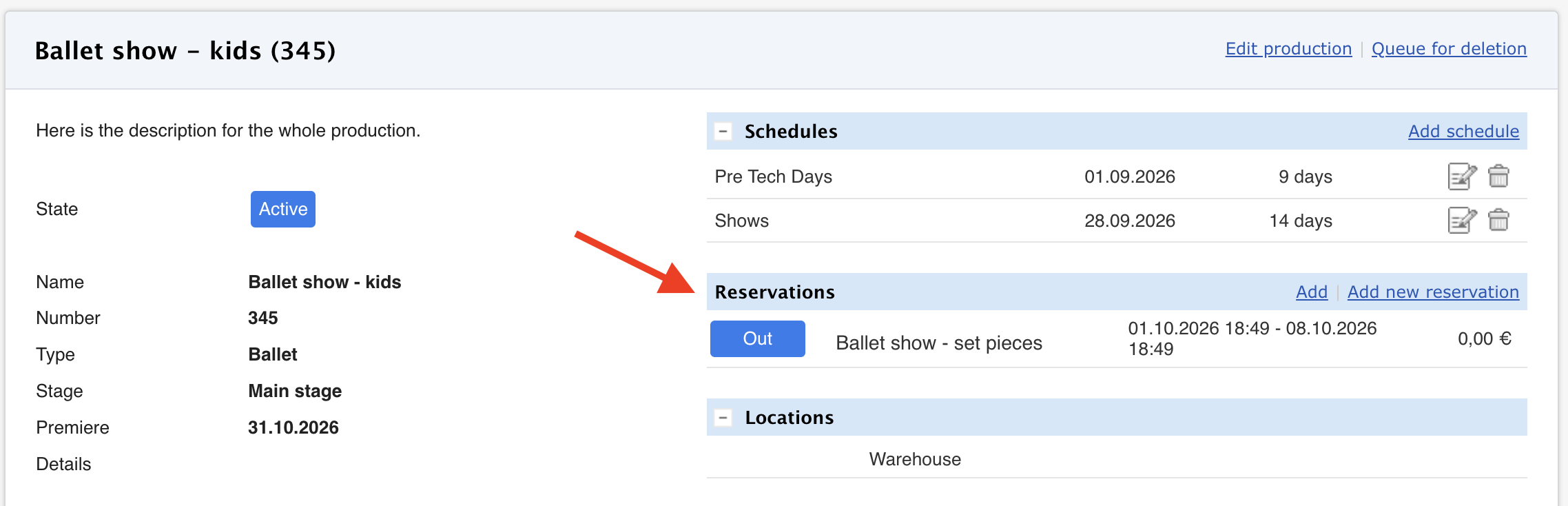
Reservations are shown on the production page under Reservations.
You can also create a new reservation from Add new reservation. The Production field is then filled in automatically on the reservation form.
Removing a reservation from a production
If a reservation has been linked to the wrong production, you can remove it as follows:
- Open the reservation.
- Click Edit.
- In the Production field, select No production.
- Click Save.
- The reservation no longer appears in the production's details.